
By Amanda Bowen

1. When starting this experiment, we must first connect our LCD to the Raspberry
Pi Pico. We are able to do this by using wires, which provide a path for electricity
to flow.
Look at the backside of your LCD. You should notice that there are four pins
protruding from the right (Different model is depicted below, but the pins are the
same).
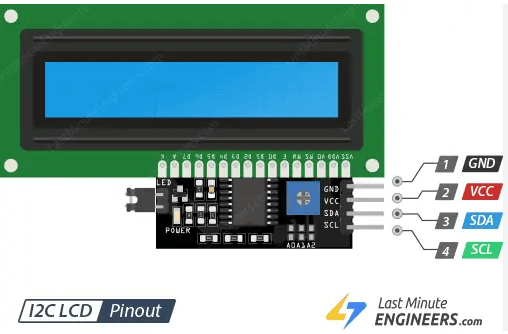
GND (ground) is the common refence point in a circuit where all of the voltages can be measured from, it is needed to complete a circuit. VCC (voltage common collector) is the power input of a device. SDA serial data) sends and receives data. SCL (serial clock) holds the clock signal.
To connect the LCD to the Pico, wires must be connected to the proper spaces on the breadboard. The GND pin must connect to any of the GND pins, the VCC must be connected to the VBUS pin, the SDA just be connected to the GP0 pin, and the SCL must be connected to the GP1 pin. (the location of these pins are shown on the Pico pinout sheet). For reference, the layout of my circuit is in the image below:

2. Once your circuit is set up, plug the USB from the Pico into your computer.
3. Download this zip file, created by Dan Halbert, so that we can use the LCD. Download from here. (the file size is around 7.5 KB).
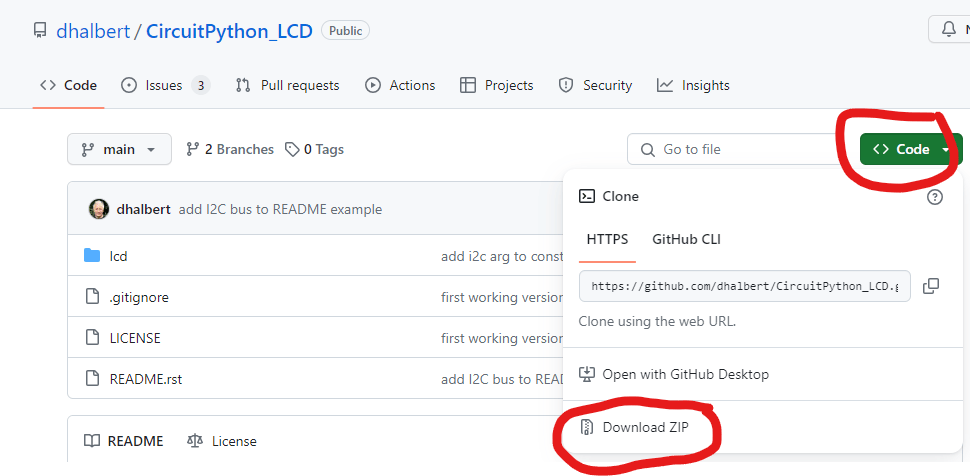
- To unzip the folder, you have to right-click and select “Extract All”.
- Copy the lcd folder from the unzipped folder into the lib folder of the CIRCUITPY drive.
- Open the file titled “code” and paste the below code into Thonny. The code was created by Nick Koumaris (Twitter: @NKoumaris, Youtube: @programmingwithnick).
To better understand the code, the following steps will guide you with the setup.
- The first few lines of the code should look like this:

The import statement allows for a module to access code in another module.
- The set cursor position goes by row and column, so the message that you want to display will print out using set coordinates. It is important to note that the LCD has 2 rows and 16 columns.


9. Sleep is the number of seconds your message will appear on the screen and clear means that your message will delete.

10. You can create custom characters here. This website was also created by Nick Koumaris. Make sure for the setting the color is set to green and the datatype is binary. Once you have created the character, copy the code and place it here:

Then we place the custom character into the display memory:
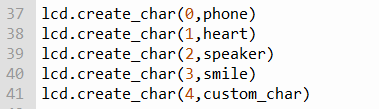
The display memory can remember up to eight characters.
Here is an example of a custom character:
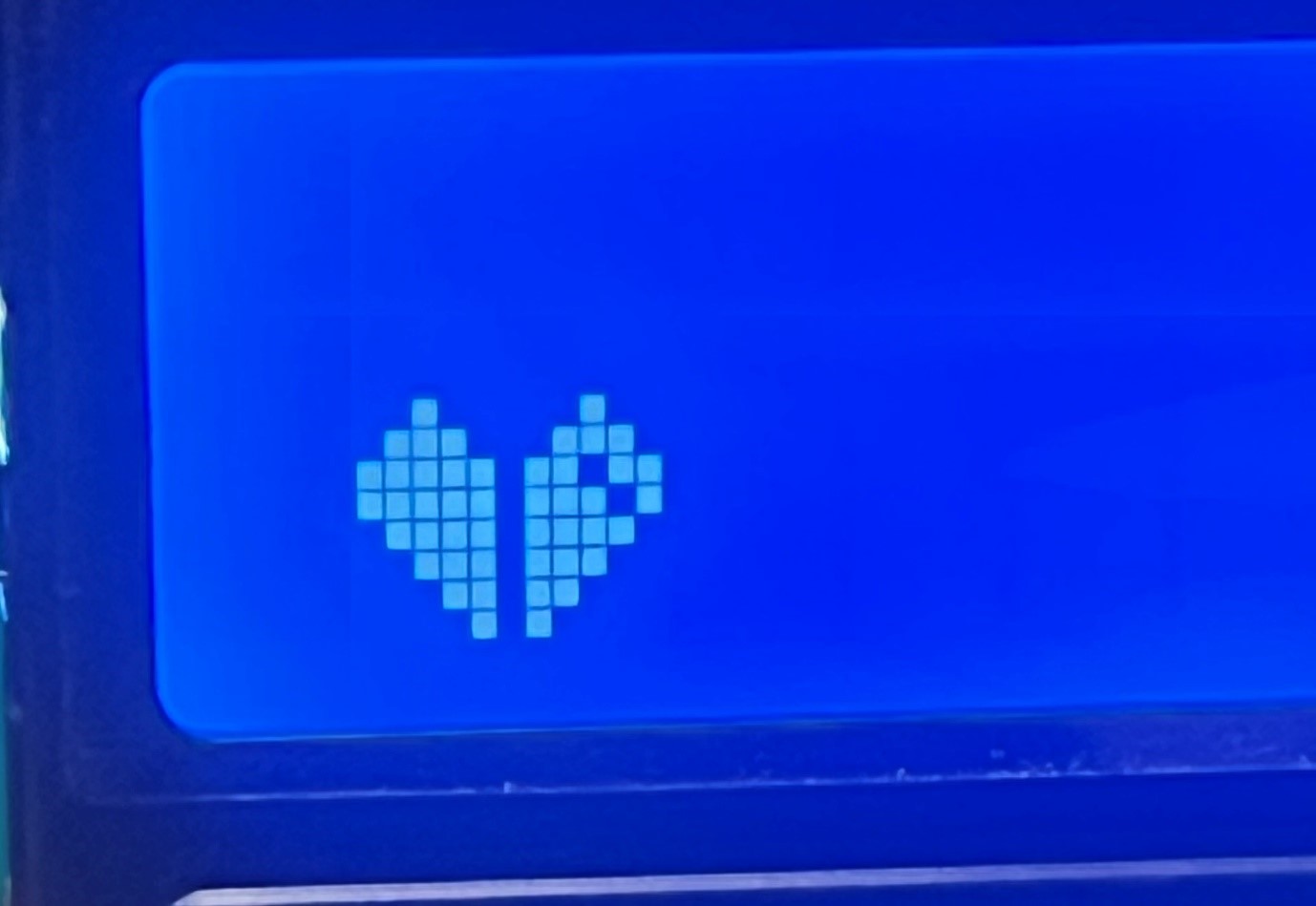
Here is all the code:
# This script supports the Raspberry Pi Pico board

# Raspberry Pi Pico: http://educ8s.tv/part/RaspberryPiPico

# 20x4 I2C DISPLAY: http://educ8s.tv/part/20x4LCD


import board, busio, time


from lcd.lcd import LCD

from lcd.i2c_pcf8574_interface import I2CPCF8574Interface


phone = (0x04,0x1F,0x11,0x11,0x1F,0x1F,0x1F,0x1F)

heart = (0x00,0x0A,0x15,0x11,0x0A,0x04,0x00,0x00)

speaker = (0x01,0x03,0x07,0x1F,0x1F,0x07,0x03,0x01)

smile = (0x00,0x0A,0x00,0x11,0x0E,0x00,0x00,0x00)


sda, scl = board.GP0, board.GP1

i2c = busio.I2C(scl, sda)

lcd = LCD(I2CPCF8574Interface(i2c, 0x27), num_rows=4, num_cols=20) #If address 0x27 does not work try 0x3F


lcd.set_cursor_pos(0,3)

lcd.print("Hello YouTube!")

lcd.set_cursor_pos(1,8)

lcd.print("****")

lcd.set_cursor_pos(2,0)

lcd.print("This is a demo text.")

lcd.set_cursor_pos(3,8)

lcd.print("****")


time.sleep(2)

lcd.clear()


lcd.create_char(0,phone)

lcd.create_char(1,heart)

lcd.create_char(2,speaker)

lcd.create_char(3,smile)


lcd.set_cursor_pos(0,0)

lcd.print("Custom Characters")

lcd.set_cursor_pos(1,0)

lcd.write(0)

lcd.set_cursor_pos(1,2)

lcd.write(1)

lcd.set_cursor_pos(1,4)

lcd.write(2)

lcd.set_cursor_pos(1,6)

lcd.write(3)


time.sleep(3)

lcd.set_backlight(False)

time.sleep(1)

lcd.set_backlight(True)



Leave a Reply